
Manual > Form GSTR-1 > Creation and Submission of Outward Supplies Return
How can I create, submit and file details for the outward supplies in Form GSTR-1?
To create, submit and file details for outward supplies in Form GSTR-1, perform following steps:
A. Login and Navigate to Form GSTR-1
B. Generate Form GSTR-1 Summary
C. Download Details from E-Invoice
E. Viewing or Editing E-invoice Details in Form GSTR-1
F. Deleting Details in Form GSTR-1
I. Acknowledge and Submit Form GSTR-1
J. File Form GSTR-1 with DSC/ EVC
A. Login and Navigate to Form GSTR-1
1. Access the http://www.gst.gov.in URL. The GST Home page is displayed. Login to the GST Portal with valid credentials. Click the Services > Returns > Returns Dashboard option.

2. The File Returns page is displayed. Select the Financial Year, Quarter and Period (Month) for which you want to file the return from the drop-down list. Click the SEARCH button.
3. In the GSTR1 tile, click the PREPARE ONLINE button if you want to prepare the return by making entries on the GST Portal.
Note: You can click the PREPARE OFFLINE button to upload the JSON file containing invoice details and other Form GSTR-1 details prepared through the offline tools.

4. The GSTR-1 – Details of outward supplies of goods or services page is displayed.
Note: You can click the HELP button to view help related to this page.

Click here to go back to main menu
B. Generate Form GSTR-1 Summary
5. Scroll down to the bottom of the GSTR-1 – Details of outward supplies of goods or services page and click the GENERATE GSTR1 SUMMARY button to generate summary of recent records.

6. After the summary generation is initiated, you will notice the message to click on refresh button to check for completion of request.
Note: Summary generation can be initiated after 5 mins of completion of previous request as GENERATE GSTR1 SUMMARY button will be disabled for 5 mins.

7. After the summary is generated, you will notice a success message on top of the page and PREVIEW button will be enabled.

7.1 After you have added the invoices, you can generate the summary by clicking the GENERATE GSTR1 SUMMARY button. Summary can be regenerated only after GENERATE GSTR1 SUMMARY button is enabled after 5 minutes. In case you attempt to generate summary again before it has been generated or the form is refreshed, you will notice an error message on top of the page that Summary Generation is in progress.

Click here to go back to main menu
C. Download Details from E-Invoice
Downloading details from E-invoice reduces the burden of taxpayers to again upload details of outward supplies in their Form GSTR-1. With the auto-populated details, taxpayers can use it to file their Form GSTR-1 easily.
After generating invoices, the taxpayers will upload the invoice details on Invoice Registration Portal (IRP), which in turn will generate a unique invoice reference number (IRN), a QR code and digitally sign it. The GST Portal will get these E-invoice details from IRP and update it in the taxpayer’s Form GSTR-1 in a period of 2 days.
The data gets auto-populated from E-invoices in the following tables of Form GSTR-1:
a. 4A, 4B, 4C, 6B, 6C – B2B Invoices
b. 6A – Export Invoices
c. 9B – Credit/Debit notes (Registered) – CDNR
d. 9B – Credit/Debit notes (Unregistered) – CDNUR
8. To download details from e-invoice, click the DOWNLOAD DETAILS FROM E-INVOICES (EXCEL) button.

9. Clicking the button downloads the file in an excel format.
Note:
- In case the number of records available are less than 500, then the excel gets downloaded instantly and in-progress message will not be displayed. The excel will get downloaded instantly.
- If the records are more than 500, the downloaded file will appear under the ‘E-invoice Download History” section and below progress screen will be shown.

- In case there are no records or zero records available to be downloaded, then the following information message will be displayed on the screen.

10. Click the E-INVOICE DOWNLOAD HISTORY button to view the downloaded excel files.

11. The E-invoice Details section provides the last five downloaded e-invoice excel files by the users, with date and time stamp. Click the Click here to download – File1 link to download the excel file .

12. The file gets saved in the local drive of your machine. The link for the downloaded excel file is displayed at the bottom of the page.

13. Click the file icon to open the folder on your local machine.

14. The excel file is displayed.

Note: The E-invoice details that are auto-populated from invoices for Form GSTR-1 are displayed in excel. The details of various tables are displayed in different sheets, which can be accessed by clicking the tabs available at the bottom of the sheet.
Click here to go back to main menu
D. Creating My Masters
You can create Master list of Products and Supplier / Recipient that can be used for preparation of GSTR-1 online and offline. To create Masters, perform the following steps:
15. Login to the GST Portal with valid credentials. Click the Services > User Services > My Masters option.

15.1. My Masters page is displayed. Following four tabs will be available on the page:
| S. No. | Name of the Tab | Nature of the Tab |
| 1 | Product Master | Taxpayer can use this tab to prepare and view a product master list which can be used while preparing GSTR-1 for filing. |
| 2 | Supplier / Recipient Master | Taxpayer can use this tab to prepare and view supplier / recipient master list which can be used while preparing GSTR-1 for filing. |
| 3 | Download my Master(s) | Taxpayer can use this tab to download the master lists prepared online from the Portal. |
| 4 | Upload my Master(s)(Prepared Offline) | Taxpayer can use this tab to upload master lists, prepared offline, on the Portal.. |

1. Product Master – Taxpayer can use this tab to prepare and view a product master list which can be used while preparing GSTR-1 for filing.

1.1 Enter HSN Code by selecting from generated list of codes and HSN description will be auto-populated, enter a unique Product name for your product, select IGST rate(%) and UQC from the drop-down list. Click the SAVE button.
Note: You can give a unique name to a product as per your convenience. You can click the ADD button to add all records at once and then click the SAVE button to save the list.

1.2 ADDED PRODUCT(S) table will be updated. Click Records per page drop-down to change the number of records visible.
Note:
• You can add up to 500 records, post which new records can only be added after the deletion of previous records.
• You can edit the list or DELETE product from the list by clicking on respective buttons.
• You can use Search field to find product details in the master list.

• You can click the SUMMARY button to check the no. of records basis Tax Rate.

2. Supplier / Recipient Master – Taxpayer can use this tab to prepare and view supplier / recipient master list which can be used while preparing GSTR-1 for filing.

2.1 Enter details in GSTIN field and Trade/Legal Name will be auto-populated, enter a unique Supplier / Recipient name, and check the box for Recipient or Supplier to specify the category. Click the SAVE button.
Note:
• You can categorize GSTIN as both the recipient and supplier.
• You can click the ADD button to add all records at once and then click the ¨C264Cbutton to save the list.

2.2 ADDED SUPPLIER(S) / RECIPIENT(S) table will be updated. Supplier/Recipient details like Registration status, Type of taxpayer will be auto-populated. Click Records per page drop-down to change the number of records visible.

Note:
• You can add up to 500 records, post which new records can only be added after the deletion of previous records.
• Alternatively, you can add records in supplier/recipient master directly while filing GSTR-1. While entering new product details, click the ADD TO MASTER button.

• You can edit the list or DELETE product from the list by clicking on respective buttons.
• You can use Search field to find GSTIN details in the master list.
• You can click the SUMMARY button to check the no. of records basis Category of GSTIN.

3. Download my Master(s) – Taxpayer can use this tab to download the prepared master lists to their system.

3.1 Click Download My Master as Excel to download the list in excel format.


3.2 Click Download My Master JSON for Offline Tool to download the master list in JSON format for viewing in offline tool.


4. Upload my Master(s)(Prepared Offline) – Taxpayer can use this tab to upload master lists prepared in GST offline tool.

4.1 To prepare Masters offline, open GST Offline Tool and click the PREPARE/VIEW button under My Masters tab.

4.2 GSTIN will be auto-populated from the file. Click the PROCEED button.

4.3 My Masters page will be displayed. Enter details in Product Master and Supplier/Recipient Master by following the similar process as of online facility.
For Product Master: Enter HSN Code by selecting from generated list of codes and HSN description will be auto-populated, enter a unique Product name for your product, select IGST rate(%) and UQC from the drop-down list. Click the SAVE button.

For Supplier/Recipient Master: Enter details in GSTIN field and Trade/Legal Name will be auto-populated, enter a unique Supplier/Recipient Name, and check the box for Recipient or Supplier to specify the category. Click the SAVE button.

Note:
• You can click the ADD button to add all records at once and then click the SAVE button to save the list.
• You can edit the list by clicking on the edit button.
• Click the REMOVE DATA IN SELECTED TABLES button to remove records added in offline tool.

• Click the MARK FOR DELETE IN SELECTED TABLES button to mark records for deletion that were added on online portal and uploaded by JSON to offline tool. These records cannot be deleted in offline tool.

4.4 Click the GENERATE JSON FILE TO UPLOAD button to generate the list in JSON format.

4.5 Login to online portal and navigate to Services > User Services > My Master > Upload my Master(s)(Prepared Offline). Click Upload My Master JSON from Offline Tool to upload the master list prepared on GST Offline Tool.

4.6 Uploaded Master Records are displayed.

Note:
• In case there are errors in the processed records uploaded from offline prepared JSON, they will be displayed in separate categories of drop-downs and can be corrected with the edit buttons.
• Also, offline prepared data cannot be uploaded in the online tool and similarly online prepared data cannot be uploaded in the offline tool.

E. Viewing or Editing E-invoice Details in Form GSTR-1
16. To edit the e-invoice details that get auto-populated in Form GSTR-1, perform following steps:
Note: The data gets auto-populated from E-invoice in the following tables:
- 4A, 4B, 4C, 6B, 6C – B2B Invoices,
- 6A – Export Invoices, and
- 9B – Credit/Debit notes (Registered) – CDNR
- 9B – Credit/Debit notes (Unregistered) – CDNUR
(Note: For illustration purpose, the 4A, 4B, 4C, 6B, 6C – B2B Invoices tile has been considered. You can click any of the above-mentioned tiles to edit the details.)
16.1 Click the 4A, 4B, 4C, 6B, 6C – B2B Invoices tile to edit the details.

16.2. Click the hyperlink on Processed Records to open the list of processed invoices of recipient GSTIN.

16.3. The list of invoices received from the selected GSTIN is displayed. To view all the columns, click the Display/ Hide Columns drop-down arrow, and then select Check All option from the list. You can also change Records per page by clicking on the drop-down to view up to 50 records at once.
16.4. The following columns gets displayed as a part of auto-population of data from Form GSTR-1.
Note:
- By default, the IRN and IRN Date columns are hidden. To view the columns, select the Check All option from the column drop-down.
- In case the E-invoice details are auto-populated from Form GSTR-1, the following details can be viewed in the Processed Documents page:
- Source: Displays the source from where the details are uploaded in GSTR-1. ‘E-invoice’ implies that the details are auto-populated from E-invoice
- IRN: Invoice Reference Number (IRN) of the E-invoice
- IRN Date: Date of E-invoice
16.5. To edit an invoice details, click the edit icon under Actions column. The invoice is displayed.
16.6. Click the EDIT button and make changes/ edit the invoice details wherever required and then click the SAVE button.
Note: Once the e-invoice details that are auto-populated from Form GSTR-1 gets edited, the source is no longer E-invoice and the three columns: Source, IRN, and IRN Date become blank.

16.7. Clicking the SAVE button displays an error message. Click the YES button to close the message window.

Note: In case of deleting the record, a warning message will be displayed. Click on YES button to close the message window.
16.8. The following success message is displayed at the top of the page indicating the request has been successfully accepted. Add Invoice page will reopen once you save the record. You may continue adding new records using this form or click Back icon/button to go back to Recipient wise count tab.

Click here to go back to main menu
F. Deleting Details in Form GSTR-1
Note: To delete details in Form GSTR-1, you can
- Either go to individual tables and delete details within the tile using the DELETE button or

- Click RESET button to delete details of all tiles at one go.

Click here to go back to main menu
G. Enter Details in various tiles
17. There are number of tiles representing Tables to enter relevant details. Click on the tile names to know and enter related details:
- Table 4A, 4B, 6B, 6C – B2B Invoices: To add an invoice for taxable outwards supplies to a registered person
- Table 5A, 5B – B2C (Large) Invoices: To add an invoice for taxable outwards supplies to a consumer, where place of supply is other than the State where supplier is located (Inter-state supplies) and invoice value is more than Rs. 2.5 lakh
- Table 6A – Exports Invoices: To add an invoice for supplies exported
- Table 7- B2C Others: To add consolidated details of taxable outwards supplies to a customer where invoice value is less than Rs. 2.5 lakh and all intra state supplies to unregistered customers
- Table 8A, 8B, 8C, 8D – Nil Rated Supplies: Nil Rated Supplies: To add consolidated details of nil rated, exempted and Non-GST Outward supplies
- Table 9B – Credit / Debit Notes (Registered): To add details of credit or debit notes issued to the registered recipients
- Table 9B – Credit / Debit Notes (Unregistered): To add details of credit, debit notes or refund voucher issued to the unregistered recipients
- Table 11A(1), 11A(2) – Tax Liability (Advances Received): Tax Liability (Advances Received): To add details of transactions attracting tax liability arising on account of Time of Supply (like receipt of advances)
- Table 11B(1), 11B(2) – Adjustment of Advances: To add the advance amount received in earlier tax period and adjusted against the supplies being shown in this tax period
- Table 12 – HSN-wise-summary of outward supplies: To furnish the summarized details of all outward supplies HSN and rate wise along with quantitative details.
- Table 13 – Documents Issued: To add the details of documents issued during the tax period
- Table 9A – Amended B2B Invoice: To make amendments to details of outward supplies to a registered person of earlier tax periods
- Table 9A – Amended B2C (Large) Invoice: To make amendments to taxable outward supplies to an unregistered person of earlier tax periods
- Table 9A – Amended Exports Invoices: To make amendments to supplies exported
- Table 9C – Amended Credit/ Debit Notes (Registered): To make amendments to details of credit or debit notes issued to the registered recipients of earlier tax periods
- Table 9C – Amended Credit/ Debit Notes (Unregistered): To make amendments to details of credit or debit notes issued to the unregistered recipients of earlier tax periods
- Table 10 – Amended B2C (Others): To make amendments to details of B2C of earlier tax periods
- Table 11A – Amended Tax Liability (Advance Received): Consolidated statement for amendments of information furnished in earlier tax period
- Table 11B – Amended of Adjustment of Advances: Consolidated statement for amendments of information furnished in earlier tax period
For all tables, records are indicated by following:
Processed records – Marked in Green

Errored records – Marked in Red

Pending – Marked with Processing Symbol
Table 4A, 4B, 4C, 6B, 6C – B2B Invoices
To add an invoice for taxable outwards supplies to a registered person, perform the following steps:
17.1.1 Click the 4A, 4B, 6B, 6C – B2B Invoices tile to enter the invoice details for B2B transactions (goods/ services sold to a registered taxpayer).
B2B Invoices will have following 3 tabs:
• Recipient wise count– This tab displays details of records added by tax payer including hyperlinked counts of Processed and Pending/Errored Records.
• Document wise details– After clicking the hyperlink on the count of processed records, document wise details tab will open. This tab displays the details of processed records (invoices) of a particular recipient added by the taxpayer.
• Pending/Errored Records– After clicking the hyperlink on the count of pending/errored records, Pending/Errored records tab will open. This tab displays the details of pending/errored records (invoices) of a particular recipient added by the taxpayer.

17.1.2 The B2B Invoices- Recipient wise count tab is displayed. Click the ADD RECORD button to add a new invoice for any recipient.
Note:
• Details of all records added by taxpayer like Recipient Details, Trade/Legal Name, Taxpayer Type, Processed Records and Pending/Errored Invoices will be displayed in the Record Details table.
• You can import the data from e-Way Bill (EWB) System by clicking on the IMPORT EWB DATA button. To view step-by-step instructions on how to do this, click here.

17.1.3 The B2B – Add Invoice page is displayed. In the Receiver GSTIN/UIN field, enter the GSTIN or UIN of the receiver.
17.1.4 Select the checkbox for Deemed Exports or SEZ Supplies with payment or SEZ supplies without payment as applicable. Select the Supply attract Reverse Charge checkbox, in case supply made to the taxpayer is covered under the reverse charge mechanism. Select the checkbox provided Is the supply eligible to be taxed at a differential percentage (%) of the existing rate of tax, as notified by the Government?, in case supply is eligible to be taxed at a differential percentage of the existing rate of tax.
Note: Deemed export details can be provided for payment of IGST, CGST and SGST payments.
17.1.5 In the Invoice No., Invoice Date and Total Invoice Value fields, enter the Invoice number, date of the invoice and value of the total invoice.
Note:
- The GSTIN should be registered on the date of invoice.
- Once the GSTIN of the receiver is entered, Receiver Name, POS and Supply Type fields are auto-populated based on the GSTIN of the receiver.
- The auto-populated POS is editable. Depending on selected POS, the supply type gets auto-populated.
- The screen will expand downwards and more fields will appear to enter line item details of the invoice.
- In case of UN Bodies, Embassies, Government Offices or Other Notified persons, you need to provide Unique Identification Number (UIN) of the receiver.
- An invoice number should be alphanumeric with allowable special characters and unique for a given Financial Year (FY).
- Invoice date cannot be a future date or a date prior to the date of registering with GST.
17.1.5 (a) In case of Intra-State transaction: In case the POS (place of supply) of the goods/ services is the same state as that of the supplier, the transaction is an Intra-State transaction. Notice, fields for Central Tax and State/UT Tax will appear. In the Taxable Value field against the rates, enter the taxable value of the goods or services. In the Cess field, enter the cess amount.
Note: The Amount of Tax fields are auto-populated based on the values entered in Taxable Value fields respectively. However, the taxpayer can edit the tax amount.
Note: Intra-State supplies attracting IGST will be enabled only when the supply attract reverse charge is selected by the taxpayer.

17.1.5 (b) In case of Inter-State transaction: In case the POS (place of supply) of the goods/ services is the different from the state of the supplier, the transaction is an Inter-State transaction. Notice, field for Integrated Tax will appear. In the Taxable Value field against the rates, enter the taxable value of the goods or services. In the Cess field, enter the cess amount.
Note: The Amount of Tax fields are auto-populated based on the values entered in Taxable Value fields respectively. However, the taxpayer can edit the tax amount.
17.1.6. Click the SAVE button to save the invoice details.

Note: Add Invoice page will reopen once you save the record. You may continue adding new records using this form or click Back icon/button to go back to Recipient wise count tab.

17.1.7. You will be directed to the previous page. You can add invoice of the particular receiver by clicking on the green button in the Add Invoice column. Click the BACK button to go back to the Form GSTR 1.

17.1.8. Click on hyperlink of Processed Records to edit processed records in Document wise details tab.

17.1.9. Document wise details tab is displayed. Details of processed records added by taxpayer like recipient details, legal name and invoice details will be displayed. Click the BACK button to go to Recipient wise count page.
Note:
Click on Records Per Page drop-down to view up to 50 records per page.
You can also search for a particular invoice using the Search field.

Note: Follow similar steps to access Pending/Errored Records by clicking the hyperlink on pending/errored records column.

17.1.11. You will be directed to the GSTR-1 landing page and the B2B Invoices tile in Form GSTR-1 will reflect the number of processed and errored invoices added.
Note: If there are invoices processed with error, the table will be marked in red.

Click here to go back to main menu
Table 5A, 5B – B2C (Large) Invoices
To add an invoice for taxable outwards supplies to a consumer, where place of supply is other than the State where supplier is located (Inter-state supplies) and invoice value is more than Rs. 2.5 lakh, perform the following steps:
17.2.1 Click the 5A, 5B – B2C (Large) Invoices tile to enter the invoice details for inter-state taxable outward supplies made to a consumer of value greater than 2.5 lacs.

17.2.2. The B2C (Large) Invoices – Summary page is displayed. Click the ADD RECORD button to add a new invoice for any receiver.
Note: You can import the data from e-Way Bill (EWB) System by clicking on the IMPORT EWB DATA button. To view step-by-step instructions on how to do this, click here.

17.2.3. The B2C (Large) Invoices – Details page is displayed. In the POS field, select the place of supply (state code) where the supplies were delivered.
17.2.4. In the Invoice No. field, enter the Invoice number issued to the consumer of that POS.
Note: An invoice number should be alphanumeric with allowable special characters and unique for a given Financial Year (FY).
17.2.5. In the Invoice Date field, enter the date on which the invoice was generated.
17.2.6. In the Total Invoice Value field, enter the total amount for which the goods or services are supplied.
17.2.7. Select the checkbox provided Is the supply eligible to be taxed at a differential percentage (%) of the existing rate of tax, as notified by the Government?, in case supply is eligible to be taxed at a differential percentage of the existing rate of tax.
17.2.8. In the Taxable Value field against the rates, enter the taxable value of the goods or services. In the Cess field, enter the cess amount.
Note: The Amount of Tax fields are auto-populated based on the values entered in Taxable Value fields respectively. However, the taxpayer can edit the tax amount.
17.2.9. Click the SAVE button to save the invoice details.

Note: Add Invoice page will reopen once you save the record. You may continue adding new records using this form or click Back icon/button to go back to Processed Records page.
17.2.10. Click the BACK button to go back to the Processed Records page.
Note:
- The status of the added invoice is Processed.
- Here, you can also edit/delete the added invoices (under Actions).

17.2.11. Click on the back button to go to GSTR-1 landing page and the B2C (large) Invoices tile in Form GSTR-1 will reflect the number of invoices added.

Click here to go back to main menu
Table 6A – Exports Invoices
To add an invoice for supplies exported, perform the following steps:
17.3.1. Click the 6A- Export Invoices tile to enter the invoice details for supplies exported.

17.3.2. Click OK.

17.3.3. The Exports – Invoices Summary page is displayed. Click the ADD DETAILS to add a new invoice.
Note: You can import the data from e-Way Bill (EWB) System by clicking on the IMPORT EWB DATA button. To view step-by-step instructions on how to do this, click here.

17.3.4. The Exports – Add Details page is displayed. In the Invoice No. field, enter the Invoice number issued against exports sales.
17.3.5. In the Invoice Date field, enter the date on which the invoice was generated.
17.3.6. In the Port Code field, enter the port code.
17.3.7. In the Shipping Bill No./Bill of Export No. field, enter the unique number of the shipping bill with location code generated while shipping.
Note: Shipping Bill No./Bill of Export No. should be minimum 3 and maximum 15 digit numeric.
17.3.8. In the Shipping Bill Date/ Bill of Export Date field, enter the date on which the shipping bill was issued.
17.3.9. In the Total Invoice Value field, enter the total amount of all the goods or services supplied.
17.3.10. From the GST Payment drop-down list, select whether the GST is paid against the invoice or not.
17.3.11. In the Taxable Value field against the rates, enter the taxable value of the goods or services.
Note: The Amount of Tax fields are auto-populated based on the values entered in Taxable Value fields respectively. However, the taxpayer can edit the tax amount.
17.3.12. Click the SAVE button to save the details.

Note: Add Invoice page will reopen once you save the record. You may continue adding new records using this form or click Back icon/button to go back to Processed Records page.
17.3.13. Click OK.

17.3.14. Click the BACK button to go back to the Processed Records page.
Note:
- The status of the added invoice is Processed.
- Here, you can also edit/delete the added invoices (under Actions).

17.3.15. Click on the BACK button to go to the GSTR-1 landing page and the Export Invoices tile in GSTR-1 will reflect the number of invoices added.

Click here to go back to main menu
Table 7- B2C Others
To add details of taxable outwards supplies to a customer where invoice value is less than Rs. 2.5 lakh and intra-state supplies to customers, perform the following steps:
17.4.1. Click the B2C (Others) tile to enter the details for B2C transactions.

17.4.2. The B2C (Others) Details – Summary page is displayed. Click the ADD DETAILS button to add the line item details.
Note: You can import the data from e-Way Bill (EWB) System by clicking on the IMPORT EWB DATA button. To view step-by-step instructions on how to do this, click here.

17.4.3. In the POS field, select the Place of Supply (State Code) where the supplies were delivered. Based on the state selected in POS, Supply Type field is auto-populated. In the Taxable Value field, enter the collated amount of all the unique goods or services supplied. In the Rate field, enter the applicable Rate.
17.4.3 (a) In case of Intra-State transaction: In case the POS (place of supply) of the goods/ services is the same state as that of the supplier, the transaction is an Intra-State transaction. Notice, fields for Central Tax and State/UT Tax will appear. In the Taxable Value field against the rates, enter the taxable value of the goods or services. In the Cess field, enter the cess amount.
Note: The Amount of Tax fields are auto-populated based on the values entered in Taxable Value fields respectively. However, the taxpayer can edit the tax amount.

17.4.3 (b) In case of Inter-State transaction: In case the POS (place of supply) of the goods/ services is the different from the state of the supplier, the transaction is an Inter-State transaction. Notice, field for Integrated Tax will appear. In the Taxable Value field against the rates, enter the taxable value of the goods or services. In the Cess field, enter the cess amount.
Note: The Amount of Tax fields are auto-populated based on the values entered in Taxable Value fields respectively. However, the taxpayer can edit the tax amount.
17.4.4. Click the SAVE button to save the invoice details.

Note: Add Invoice page will reopen once you save the record. You may continue adding new records using this form or click Back button to go back to Processed Records page.
17.4.5. Click the BACK button to go back to the Processed Records page.
Note:
- The status of the added invoice is Processed.
- Here, you can also edit/delete the added invoices (under Actions).

17.4.6. Click on the back button to go to GSTR-1 landing page and the B2C Others tile in Form GSTR-1 will reflect the number of invoices added.

Click here to go back to main menu
Table 8A, 8B, 8C, 8D – Nil Rated Supplies
To add an invoice for Nil Rated Supplies, Exempted and Non-GST Outward supplies, perform the following steps:
17.5.1. Click the Nil Rated Supplies tile to enter the details for Nil rated supplies.

17.5.2. The Nil Rated Supplies page is displayed. Enter the data in Nil Rated Supplies, Exempted (Other than Nil rated/non-GST supply), and Non-GST Supplies Amount fields for the following categories of transactions:
- Inter-state supplies to registered person
- Inter-state supplies to unregistered person
- Intra-state supplies to registered person
- Intra-state supplies to unregistered person
17.5.3. Click the SAVE button to save the details.

17.5.4. A message is displayed that Request accepted successfully. Click the BACK button to go back to the GSTR-1 page.

17.5.5. You will be directed to the GSTR-1 landing page and the Nil Rated Supplies tile in GSTR-1 will reflect the Total Nil Amount, Total Exempted Amount and Total Non-GST Amount.

Click here to go back to main menu
Table 9B – Credit / Debit Notes (Registered)
To add details of credit or debit notes for the registered user, perform the following steps:
17.6.1. Click the 9B – Credit / Debit Notes (Registered) tile to enter the details of credit or debit notes issued to the registered recipients.

Credit / Debit Notes (Registered) will have following 3 tabs:
• Recipient wise count– This tab displays details of records added by tax payer including hyperlinked counts of Processed and Pending/Errored Records.
• Document wise details– After clicking the hyperlink on the count of processed note, document wise details tab will open This tab displays the details of processed note (credit/debit notes) of a particular recipient added by the taxpayer.
• Pending/Errored Note– After clicking the hyperlink on the count of pending/errored note, Pending/Errored records tab will open. This tab displays the details of pending/errored note (credit/debit notes) of a particular recipient added by the taxpayer.
17.6.2. The Credit/Debit Notes (Registered) – Recipient wise count tab is displayed. Click the ADD RECORD button to add credit or debit note details.
• Details of all records added by taxpayer like Recipient Details, Trade/Legal Name, Taxpayer Type, Processed Note and Pending/Errored Note will be displayed in the table.
• You can import the data from e-Way Bill (EWB) System by clicking on the IMPORT EWB DATA button. To view step-by-step instructions on how to do this, click here.

17.6.3. The Credit / Debit Notes (Registered) – Add Note page is displayed. In the Receiver GSTIN/UIN field, nter the GSTIN of the receiver (registered taxpayer) to whom supply is made.
17.6.4 Select the checkbox for Deemed Exports or SEZ Supplies with payment or SEZ supplies without payment as applicable. Select the Supply attract Reverse Charge checkbox, in case supply made to the taxpayer is covered under the reverse charge mechanism. Select the checkbox provided Is the supply eligible to be taxed at a differential percentage (%) of the existing rate of tax, as notified by the Government?, in case supply is eligible to be taxed at a differential percentage of the existing rate of tax.
17.6.5. In the Debit/Credit Note No. field, enter the debit or credit note number.
Note: A Debit or Credit Note number should be unique for a given Financial Year (FY).
17.6.6. In the Debit/Credit Note Date field, enter the date on which the debit or credit Note was issued.
Note: The date should be before the end date of the tax period.
17.6.7. From the Note Type drop-down list, select whether the details added are for a Debit or Credit Note.
17.6.8. In the Note Value field, enter the value of the note.
17.6.8 (a) In case of Intra-State transaction: In case the POS (place of supply) of the goods/ services is the same state as that of the supplier, the transaction is an Intra-State transaction. Notice, fields for Central Tax and State/UT Tax will appear. In the Taxable Value field against the rates, enter the taxable value of the goods or services. In the Cess field, enter the cess amount.
Note: The Amount of Tax fields are auto-populated based on the values entered in Taxable Value fields respectively. However, the taxpayer can edit the tax amount.
Note:
- Intra-State supplies attracting IGST will be enabled only when the supply attract reverse charge is selected by the taxpayer.
- If the recipient GSTIN is ISD GSTIN, then all the checkboxes (note supply type) will be disabled.

17.6.8 (b) In case of Inter-State transaction: In case the POS (place of supply) of the goods/ services is the different from the state of the supplier, the transaction is an Inter-State transaction. Notice, field for Integrated Tax will appear. In the Taxable Value field against the rates, enter the taxable value of the goods or services. In the Cess field, enter the cess amount.
Note: The Amount of Tax fields are auto-populated based on the values entered in Taxable Value fields respectively. However, the taxpayer can edit the tax amount.
17.6.9. Click the SAVE button to save the details.

Note: Add Note page will reopen once you save the record. You may continue adding new records using this form or click Back icon/button to go back to Recipient wise count tab page.

17.6.10. You will be directed to the previous page. You can add note of the particular receiver by clicking on the green button in the Add Note column. Click the BACK icon/button to go back to the Form GSTR 1.

17.6.11. 16.6.11 Click on hyperlink of Processed Note count to edit processed notes.
Note: Follow similar steps for to edit Pending/Errored Note.

17.6.12 Document wise details tab is displayed. Details of processed records added by taxpayer like recipient details, legal name and note details will be displayed. Click the BACK button to go to Recipient wise count page.
Note:
- Click on Records Per Page drop-down to view up to 50 records per page.
- You can also search for a particular invoice using the Search field.

17.6.13. You will be directed to the GSTR-1 landing page and the 9B- Credit/ Debit Notes (Registered) tile in GSTR-1 will reflect the number of credit/debit notes added.

Click here to go back to main menu
Table 9B – Credit / Debit Notes (Unregistered)
To add details of credit or debit notes or refund vouchers issued to unregistered persons, perform the following steps:
17.7.1. Click the 9B – Credit / Debit Notes (Unregistered) tile to enter the details of credit or debit notes issued to the unregistered recipients.

17.7.2. The Credit/Debit Notes (Unregistered) – Summary page is displayed. Click the ADD DETAILS button to add credit or debit note.

17.7.3. The Credit / Debit Notes (Unregistered) – Add Note page is displayed. Select the checkbox provided Is the supply eligible to be taxed at a differential percentage (%) of the existing rate of tax, as notified by the Government?, in case supply is eligible to be taxed at a differential percentage of the existing rate of tax.
17.7.4. From the Type drop-down list, select the appropriate choice like B2CL, exports without payment and exports with payment.
17.7.5. In the Debit/Credit Note No. field, enter the debit or credit note number.
Note: A Debit or Credit Note number should be unique for a given Financial Year (FY).
17.7.6. In the Debit/Credit Note Date field, enter the date on which the debit or credit Note was issued.
Note: The date should be before the end date of the tax period.
17.7.7 In the Note Value field, enter the value of the note.
17.7.8. From the Note Type drop-down list, select whether the details are added for a Debit or Credit Note.
17.7.9. In Credit/Debit Notes (Unregistered) if UR type is B2CL, then POS will be inter-state always. In case if UR type is Exports, then POS filed will not be shown, Hence, supply type will be always inter-state and non-editable. Notice, fields for Integrated Tax appear. In the Taxable Value field against the rates, enter the taxable value of the goods or services. In the Cess field, enter the cess amount.
Note: The Amount of Tax fields are auto-populated based on the values entered in Taxable Value fields respectively. However, the taxpayer can edit the tax amount.
17.7.10. Click the SAVE button to save the details.

Note: Add Note page will reopen once you save the record. You may continue adding new records using this form or click Back icon/button to go back to Processed Records page.
17.7.11. Click the BACK button to go back to the Processed Records page.
Note:
- The status of the added invoice is Processed.
- Here, you can also edit/delete the added invoices (under Actions).

17.4.12. You will be directed to the GSTR-1 landing page and the 9B- Credit/ Debit Notes (Unregistered) tile in GSTR-1 will reflect the number of credit/debit notes added along with, Total Taxable Value and tax amount which will be the net of debit notes and credit notes.

Click here to go back to main menu
Table 11A(1), 11A(2) – Tax Liability (Advances Received)
To add details of Tax Liability (Advances Received) arising on account of Time of Supply without issuance of Invoice in the same period, perform the following steps:
17.8.1. Click the Tax Liability (Advances Received) tile to enter the tax liability details

17.8.2. The Tax Liability (Advance Received) – Summary page is displayed. Click the ADD STATE WISE DETAILS button to add the advance tax receipt and related liability details.

17.8.3. In the POS field, select the State code of the place of supply applicable for the advances received. .
Note: Based on the state code selected, Supply Type column would be auto-populated as Inter-state or Intra-state.
17.8.3 (a) In case of Intra-State transaction: Notice, fields for Central Tax, State/UT Tax & CESS will appear in the screen. In the Gross Advance Received field, enter the amount paid by the receiver to the supplier for the goods/service provided by the supplier without issuing of any invoice for the goods/services against the applicable Rate (%). In the Central Tax, State/UT Tax field, system will auto-populate the Central Tax and State/UT Tax amount. The same will be editable. In the CESS field, enter the CESS amount.

17.8.3 (b) In case of Inter-State transaction: Notice, fields for Integrated Tax & CESS will appear in the screen. In the Gross Advance Received field, enter the amount paid by the receiver to the supplier for the goods/service provided by the supplier without issuing of any invoice for the goods/services against the applicable Rate (%). In the Integrated Tax field, system will auto-populate the Integrated Tax amount. This will be an editable field. In the CESS field, enter the CESS amount.
17.8.4. Click the SAVE button.

Note: Add Details page will reopen once you save the record. You may continue adding new records using this form or click Back icon/button to go back to Processed Records page.
17.8.5. You will be directed to the previous page and a message is displayed that Request accepted successfully. Click the BACK button to go back to the GSTR-1 page.
Note:
- The status of the added invoice is Processed.
- Here, you can also edit/delete the added invoices (under Actions).

17.8.6. You will be directed to the GSTR-1 landing page and the Tax Liability (Advance Recieved) tile in GSTR-1 will reflect the updated total Gross Advance Received and Total Tax Liability.

Click here to go back to main menu
Table 11B(1), 11B(2) – Adjustment of Advances
To fill details of Adjustment of Advances on invoices issued in the current period, perform the following steps.
17.9.1. Click the 11B(1), 11B(2)- Adjustment of Advances tile to enter the details of tax already paid on invoices issued in the current period.

17.9.2. The Tax already paid on invoices issued in the current period – Summary page is displayed. Click the ADD STATE WISE DETAILS button to add details for invoices issued in the current period on which tax has already been paid.

17.9.3. The Tax already paid on invoices issued in the current period – Add Details page is displayed. Select the POS from the drop-down list.
17.9.3 (a) In case of Intra-State transaction: Notice, fields for Central Tax, State/UT Tax & CESS will appear in the screen. In the Gross Advance Adjusted field, enter the amount paid by the receiver to the supplier for the goods/service provided by the supplier without issuing of any invoice for the goods/services against the applicable Rate (%). In the Central Tax, State/UT Tax field, system will auto-populate the Central Tax and State/UT Tax amount. The same will be editable. In the CESS field, enter the CESS amount.

17.9.3 (b) In case of Inter-State transaction: Notice, fields for Integrated Tax & CESS will appear in the screen. In the Gross Advance Adjusted field, enter the amount paid by the receiver to the supplier for the goods/service provided by the supplier without issuing of any invoice for the goods/services against the applicable Rate (%). In the Integrated Tax field, system will auto-populate the Integrated Tax amount. This will be an editable field. In the CESS field, enter the CESS amount.
17.9.4. Click the SAVE button.

Note: Add Details page will reopen once you save the record. You may continue adding new records using this form or click Back icon/button to go back to Processed Records page.
17.9.5. You will be directed to the previous page and a message is displayed that Request accepted successfully. Click the BACK button to go back to the GSTR-1 page.
Note:
- The status of the added invoice is Processed.
- Here, you can also edit/delete the added invoices (under Actions).

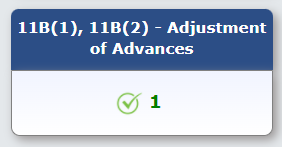
17.9.6. You will be directed to the GSTR-1 landing page and the Adjustment of Advances tile in GSTR-1 will reflect the updated total Gross Advance Adjusted and Total Tax Liability.
Click here to go back to main menu
Table 12 – HSN-wise-summary of outward supplies – From May’21 Onwards
To furnish the HSN-wise summary of outward supplies along with rate and quantitative details, perform the following steps:
17.10.1. Click the HSN-wise summary of outward supplies tile to furnish the summarized details of all outward supplies HSN-wise along with rate and quantitative details.
Note: You can import the data from e-Way Bill (EWB) System by clicking on the IMPORT EWB DATA button. To view step-by-step instructions on how to do this, click here.

17.10.2. The HSN summary of outward supplies – Add/Edit Details page is displayed.
17.10.3. In the HSN field, enter the HSN/SAC code of the outward supplies.
Note:
- Taxpayer can select HSN code by entering minimum 2-digits of HSN code. When taxpayer enters HSN code digits in HSN field, related values will come in drop-down list. Taxpayer can select from values coming in drop-down list.On selecting the HSN from the search drop down, description will be auto-populated.

- Taxpayer can search HSN code by description also. For Example: If taxpayer enters Telephone in HSN field, all HSN codes having Telephone in HSN description will come in drop-down list and taxpayer can select from available values.

- Taxpayer can also make an entry for the HSN code manually in the HSN field, if he/she is unable to find the requisite HSN code in the drop down.
- The combination of HSN, UQC and Rate must be unique. GST Portal will not allow more than one entry with same HSN, UQC and Rate combination.
- For Example: If taxpayer has entered 1100 as HSN code, Kg as UQC and rate as 5%, they cannot add another entry with same HSN, UQC and rate. But he can add another entry with 1100 as HSN code, Kg as UQC and rate as 12%.
17.10.4. In the UQC field, select the appropriate Unique Quantity Code in the drop-down list.
17.10.5. In the Total Quantity field, enter the quantity.
17.10.6. In the Total Taxable Value field, enter the Total Taxable Value of the outward supply.
17.10.7. In the Rate field, select the Rate from the drop-down list.
17.10.8. In the Integrated Tax, Central TAX, State Tax and CESS field, enter the Integrated Tax, Central TAX, State Tax and CESS amount, whichever applicable.
17.10.9. Click the ADD button.

17.10.10. Once the ADD button is clicked, the added records are moved to Added/Edited Invoices to be saved section. Once all details are added, click the SAVE button.
Note:
- You can click the EDIT button to edit the added details.
- You can click the DELETE button to delete the added details.
- You can click the RESET button to delete all the added details at one-go.
- You can add more HSN wise details by entering the HSN Code in HSN field.
- You can use Search feature to search for required details, which is applicable across all columns.
- To view records per page, select the required number of records from the Records Per Page drop-down list.
- To search in the list of added records, enter the relevant text/value in the Search field.

17.10.11. A message is displayed that Request accepted successfully. On click of save, records will move to processed table from added/edited invoices to be saved table. Click the BACK button to go back to the Form GSTR-1 page.

17.10.12. You will be directed to the Form GSTR-1 landing page and the HSN summary of outward supplies tile in Form GSTR-1 will reflect the number of invoices added along with Total Value, Total Taxable Value and Total Tax Liability.

Click here to go back to main menu
Table 12 – HSN-wise-summary of outward supplies – Before May’21
Note: To furnish the HSN-wise summary of outward supplies, along with quantitative details, before May’21, perform the following steps:
17.11.1. Click the HSN-wise summary of outward supplies tile to furnish the summarized details of all outward supplies, HSN-wise, along with quantitative details.
Note: You can import the data from e-Way Bill (EWB) System by clicking on the IMPORT EWB DATA button. To view step-by-step instructions on how to do this, click here.

17.11.2. The HSN-wise summary of outward supplies– Summary page is displayed. Click the ADD DETAILS button to add details for invoices issued in the current period.

17.11.3. The HSN summary of outward supplies – Add/Edit Details page is displayed.
17.11.4. In the HSN field, enter as per the applicable provision of reporting HSN code of the outward supplies.
17.11.5. In the Description field, enter the description. (Either HSN or Description should be mandatorily entered)
17.11.6. In the UQC field, select UQC.
17.11.7. In the Total Quantity field, enter the quantity of the outward supply.
17.11.8. In the Total Value field, enter the Total Value of the outward supply.
17.11.9. In the Total Taxable Value field, enter the Total Taxable Value of the outward supply.
17.11.10. In the Integrated Tax, Central TAX, State Tax and CESS field, enter the Integrated Tax, Central TAX, State Tax and CESS amount.
17.11.11. Click the ADD button.

17.11.12. Click the SAVE button.

17.11.13. You will be directed to the previous page and a message is displayed that Request accepted successfully. Click the BACK button to go back to the Form GSTR-1 page.
Note:
- The status of the added invoice is Processed after sometime.
- Here, you can also edit/delete the added invoices (using icons under Actions).

17.11.14. You will be directed to the Form GSTR-1 landing page and the HSN summary of outward supplies tile in Form GSTR-1 will reflect the number of invoices added along with Total Value, Total Taxable Value and Total Tax Liability.

Click here to go back to main menu
Table 13 – Documents Issued
To Upload the details of Documents issued perform the following steps.
17.12.1. Click the Documents Issued tile to add the details for document issued during the current tax period.

17.12.2. To update the document for Invoices for outward supply, Click on Add Document:

17.12.3. Add the details for different categories. You can click ADD DOCUMENT button to add more rows for each category.
17.12.4. Click SAVE at the end of the page.

17.12.5. A message is displayed that Request accepted successfully. Click the BACK button to go back to the GSTR-1 page.
Note: Here, you can also delete the added invoices (under Actions).

17.12.6. You will be directed to the GSTR-1 landing page and the Documents Issued summary tile in GSTR-1 will reflect the number of documents issued along with Total Docs, Cancelled Docs and Net Issued Docs.

Click here to go back to main menu
Table 9A – Amended B2B Invoice
To make amendments to details of outward supplies to a registered person furnished in returns of earlier tax periods, perform the following steps:
17.13.1. Click the 9A – Amended B2B Invoice tile.

17.13.2. Select the Financial Year from the drop-down list. In the Invoice No. field, enter the invoice number which you want to amend from earlier tax period. Click the AMEND INVOICE button.

17.13.3. In the Revised Invoice No. field, enter the revised invoice number for the previous invoice. Select the Revised Date using the calendar. Make amendments to the details as required. Click the SAVE button.
Note: Intra-State supplies attracting IGST will be enabled only when the supply attract reverse charge is selected by the taxpayer.

17.13.4. You will be directed to the previous page and a message is displayed that Request accepted successfully. Click the BACK button to go back to the GSTR-1 page.
Note:
- The status of the added invoice is Processed.
- Here, you can also edit/delete the added invoices (under Actions).
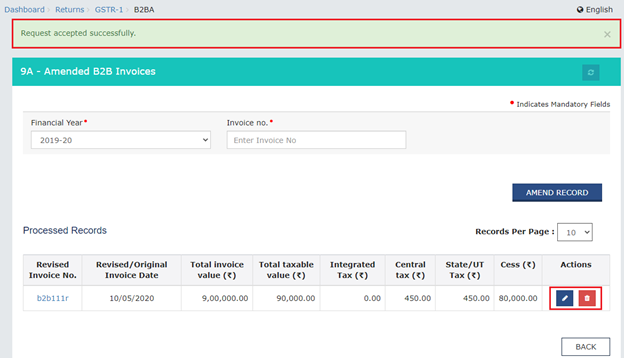
17.6.5. You will be directed to the GSTR-1 landing page and the 9A – Amended B2B Invoice tile in GSTR-1 will reflect the number of such invoices amended along with Total Tax Liability. It should be noted that you have to pay the tax in this tax period only on the differential liability.

Click here to go back to main menu
Table 9A – Amended B2C (Large) Invoice
To make amendments to taxable outward supplies to an unregistered person of earlier tax periods, perform the following steps:
17.14.1. Click the 9A – Amended B2C (Large) Invoice tile.

17.14.2. Select the Financial Year from the drop-down list. In the Invoice No. field, enter the invoice number which you want to amend from earlier tax period. Click the AMEND INVOICE button.

17.14.3. In the Revised/ Original Invoice No. field, enter the revised or original invoice number for the previous invoice. Select the Revised/ Original Invoice Date using the calendar. Make amendments to the details as required. You cannot amend the POS of the invoice furnished earlier. Click the SAVE button.

17.14.4. You will be directed to the previous page and a message is displayed that Request accepted successfully. Click the BACK button to go back to the GSTR-1 page.
Note:
- The status of the added invoice is Processed.
- Here, you can also edit/delete the added invoices (under Actions).

17.14.5. You will be directed to the GSTR-1 landing page and the 9A – Amended B2C (Large) Invoice tile in GSTR-1 will reflect the number of such invoices amended along with Total Tax Liability. It should be noted that you have to pay the tax in this tax period only on the differential liability.

Click here to go back to main menu
Table 9A – Amended Exports Invoices
To make amendments to supplies exported, perform the following steps:
17.15.1. Click the 9A – Amended Exports Invoices tile.
17.15.2. Select the Financial Year from the drop-down list. In the Invoice No. field, enter the invoice number which you want to amend from earlier tax period. Click the AMEND INVOICE button.

17.15.3. In the Revised/ Original Invoice No. field, enter the revised or original invoice number for the previous invoice. Select the Revised/ Original Invoice Date using the calendar. Make amendments to the details as required. Click the SAVE button.

17.15.4. You will be directed to the previous page and a message is displayed that Request accepted successfully. Click the BACK button to go back to the GSTR-1 page.
Note:
- The status of the added invoice is Processed.
- Here, you can also edit/delete the added invoices (under Actions).

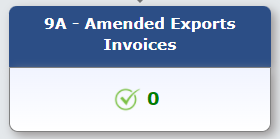
17.15.5. You will be directed to the GSTR-1 landing page and the 9A – Amended Exports Invoices tile in GSTR-1 will reflect the number of such invoices amended along with Total Tax Liability. It should be noted that you have to pay the tax in this tax period only on the differential liability.

Click here to go back to main menu
Table 9C – Amended Credit/ Debit Notes (Registered)
To make amendments to details of credit or debit notes issued to the registered recipients of earlier tax periods, perform the following steps:
17.16.1. Click the 9C – Amended Credit/ Debit Notes (Registered) tile.

17.16.2. Select the Financial Year from the drop-down list. In the Credit/Debit Note No. field, enter the credit or debit number which you want to amend from earlier tax period. Click the AMEND NOTE button.

17.16.3. In the Revised Credit/ Debit Note No. field, enter the revised credit or debit Note number. Select the Revised Credit/ Debit Note Date using the calendar. Make amendments to the details as required. Click the SAVE button.
Note:
- Intra-State supplies attracting IGST will be enabled only when the supply attract reverse charge is selected by the taxpayer.
- If the recipient GSTIN is ISD GSTIN, then all the checkboxes (note supply type) will be disabled.

17.16.4. You will be directed to the previous page and a message is displayed that Request accepted successfully. Click the BACK button to go back to the GSTR-1 page.
Note:
- The status of the added invoice is Processed.
- Here, you can also edit/delete the added invoices (under Actions).

17.16.5. You will be directed to the GSTR-1 landing page and the 9C – Amended Credit/ Debit Notes (Registered) tile in GSTR-1 will reflect the number of such invoices amended along with Taxable value and Tax amount which will be the differential amount (net of amended debit notes – amended credit notes)

Click here to go back to main menu
Table 9C – Amended Credit/ Debit Notes (Unregistered)
To make amendments to details of credit or debit notes issued to the unregistered recipients of earlier tax periods, perform the following steps:
17.17.1. Click the 9C – Amended Credit/ Debit Notes (Unregistered) tile.

17.17.2. Select the Financial Year from the drop-down list. In the Credit/Debit Note No. field, enter the credit or debit note number which you want to amend from earlier tax period. Click the AMEND NOTE button.

17.17.3. In the Revised Debit/ Credit Note No. field, enter the revised credit or debit number. Select the Revised Debit/ Credit Note Date using the calendar. Make amendments to the details as required. Click the SAVE button.

17.17.4. You will be directed to the previous page and a message is displayed that Request accepted successfully. Click the BACK button to go back to the GSTR-1 page.
Note:
- The status of the added invoice is Processed.
- Here, you can also edit/delete the added invoices (under Actions).

17.17.5. You will be directed to the GSTR-1 landing page and the 9C – Amended Credit/ Debit Notes (Unregistered) tile in GSTR-1 will reflect the number of such invoices amended along with taxable value and tax amount which will be the differential amount (net of amended debit notes – amended credit notes).

Click here to go back to main menu
Table 10 – Amended B2C (Others)
To amend details of B2C furnished in earlier tax period, perform the following steps:
17.18.1. Click the 10 – Amended B2C (Others) tile.

17.18.2. Select the Year of the line item of the declarations of previous tax period from the drop-down list. Select the Month of the line item of the declarations of previous tax period from the drop-down list. Select the Original POS of line item of the declarations of previous tax period from the drop-down list. Click the AMEND DETAILS button.

Note: In case you didn’t add POS in previous returns, enter Year, Month and Original POS using drop-down and click on ADD POS button.

17.18.3. Select the Revised/Original State Code (Place of Supply) from the drop-down list. Make the amendments as required. You cannot amend the Place of Supply field/s of the line items furnished earlier. Click the SAVE button.

17.18.4. You will be directed to the previous page and a message is displayed that Request accepted successfully. Click the BACK button to go back to the GSTR-1 page.
Note:
- The status of the added invoice is Processed.
- Here, you can also edit/delete the added invoices (under Actions).

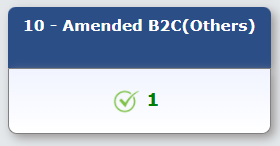
17.18.5. You will be directed to the GSTR-1 landing page and the 10 – Amended B2C (Others) tile in GSTR-1 will reflect the number of such invoices amended along with Total Tax Liability. It should be noted that you have to pay the tax in this tax period only on the differential liability.
Click here to go back to main menu
Table 11A – Amended Tax Liability (Advance Received):
To amend statement of Advances Received in earlier tax period, perform the following steps:
17.19.1. Click the 11A – Amended Tax Liability (Advance Received) tile.

17.19.2. Select the Financial Year of the line item declarations of previous tax period you wish to amend from the drop-down list. Select the POS of the line item of the declarations of previous tax period from the drop-down list. Select the Return Filing Period of the declarations of previous tax period from the drop-down list. Click the AMEND INVOICE button.

17.19.3. Make the amendments as required. You cannot amend the Advance Tax Place of Supply (PoS) field/s of the line items furnished earlier. Click the SAVE button.

17.19.4. You will be directed to the previous page and a message is displayed that Request accepted successfully. Click the BACK button to go back to the GSTR-1 page.
Note:
- The status of the added invoice is Processed.
- Here, you can also edit/delete the added invoices (under Actions).

17.19.5. You will be directed to the GSTR-1 landing page and the 11A – Amended Tax Liability (Advance Received) tile in GSTR-1 will reflect the number of such invoices amended along with Total Tax Liability. It should be noted that you have to pay the tax in this tax period only on the differential liability.

Click here to go back to main menu
Table 11B – Amended of Adjustment of Advances
To amend statement of Advances Adjusted in earlier tax period, perform the following steps:
17.20.1. Click the 11B – Amended of Adjustment of Advances tile.

17.20.2. Select the Financial Year of the line item of the declarations of previous tax period from the drop-down list. Select the POS of the line item of the declarations of previous tax period from the drop-down list. Select the Return Filing Period of the line item of the declarations of previous tax period from the drop-down list. Click the AMEND INVOICE button.

17.20.3. Make the amendments as required. You cannot amend the Advance Tax Place of supply (PoS) field/s of the line items furnished earlier. Click the SAVE button.

17.20.4. You will be directed to the previous page and a message is displayed that Request accepted successfully. Click the BACK button to go back to the GSTR-1 page.
Note:
- The status of the added invoice is Processed.
- Here, you can also edit/delete the added invoices (under Actions).

17.20.5. You will be directed to the GSTR-1 landing page and the 11B – Amended of Adjustment of Advances tile in GSTR-1 will reflect the number of such invoices amended along with Total Tax Liability. It should be noted that you have to pay the tax in this tax period only on the differential liability.

Click here to go back to main menu
H. Preview Form GSTR-1
18. Once you have generated Form GSTR-1 Summary to added invoices, click the PREVIEW button. This button will download the draft Summary page of your Form GSTR-1 for your review. It is recommended that you download this Summary page and review the summary of entries made in different sections with patience before submitting Form GSTR-1. The PDF file generated would bear watermark of draft as the details are yet to be submitted.

19. Draft Form GSTR-1 is downloaded in pdf format.

Click here to go back to main menu
I. Acknowledge and Submit Form GSTR-1
20. Select the acknowledgement checkbox stating that you have reviewed the details of preview and the information furnished is correct and are aware that no changes can be made after submit. Once you click the acknowledgement, the SUBMIT button will be enabled. Click the SUBMIT button in the landing page to submit Form GSTR-1.
Note: The submit button will freeze the invoices uploaded in Form GSTR-1 for that particular month. You will be not able to upload any further invoices for that month. In case you have missed adding any invoice, you can upload those invoices in the next month.
Note: You can click RESET button to delete all the details added in tables at one go.

21. Click the PROCEED button.

22. A success message is displayed.

Click here to go back to main menu
J. File Form GSTR-1 with DSC/ EVC
23. Refresh the page and the status of Form GSTR-1 changes to Submitted. Click the FILE RETURN button.

24. The Returns Filing for GST GSTR1 page is displayed. Select the Declaration checkbox. In the Authorised Signatory drop-down list, select the authorized signatory. Click the FILE WITH DSC or FILE WITH EVC button to file GSTR-1.
Note: On filing of Form GSTR-1, notification through e-mail and SMS is sent to the Authorized Signatory.

24.1 FILE WITH DSC:
a. Click the PROCEED button.
b. Select the certificate and click the SIGN button.
24.2 FILE WITH EVC:
a. Enter the OTP sent on email and mobile number of the Authorized Signatory registered at the GST Portal and click the VERIFY button.

25. The success message is displayed and ARN is displayed. Status of the GSTR-1 return changes to “Filed”.


 SATYAM SRIVASTAV